
How to Open and Edit PDFs in Google Docs Easily
Table of Contents
- How to Edit a PDF Using Google Docs (Complete Guide)
- Step 1: Upload the PDF to Google Drive
- Step 2: Open the PDF in Google Docs
- Step 3: Edit the PDF in Google Docs
- Step 4: Download the Edited PDF
- Best Tool for PDF to Word Conversion
- Why Use Toolszu PDF to Word Converter
- When to Use Google Docs vs PDF to Word Tool
- Final Thoughts
How to Edit a PDF Using Google Docs (Complete Guide)
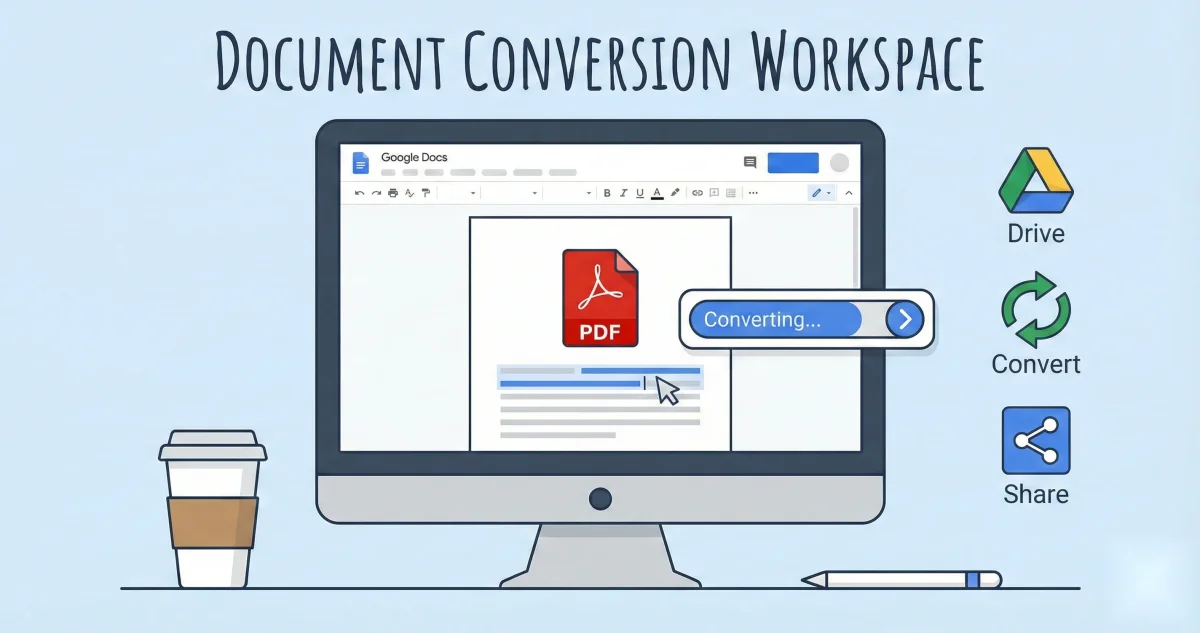
Google Docs is a powerful and free tool that allows you to open, view, and edit PDF files without installing any software. It is especially useful when you need to make quick changes to a document or convert a PDF into an editable format. Below is a complete step-by-step guide on how to edit PDFs using Google Docs and how to convert PDFs efficiently using online tools.
Step 1: Upload the PDF to Google Drive
First, open Google Drive and sign in using your Google account. Click on the New button from the left panel and select File Upload. Choose the PDF file from your computer and upload it to Drive. Once uploaded, the file will appear in your file list.
Step 2: Open the PDF in Google Docs
After the upload is complete, right-click on the PDF file inside Google Drive. From the menu, select Open with and then choose Google Docs. Google Docs will automatically convert the PDF into an editable document.
Step 3: Edit the PDF in Google Docs
Once the file opens in Google Docs, you can start editing it like a normal document. You can modify text, change formatting, adjust fonts, edit headings, and remove or add images. Google Docs also allows you to collaborate in real time and automatically saves all changes.
Keep in mind that complex formatting such as tables or scanned text may not convert perfectly, but for most documents, the results are accurate and usable.
Step 4: Download the Edited PDF
After completing your edits, click on File in the top menu, then select Download and choose PDF Document (.pdf). Your edited file will be downloaded to your system instantly.
Best Tool for PDF to Word Conversion
If you need better formatting accuracy or want to convert large PDF files, using a dedicated PDF converter is recommended. The PDF to Word Converter by Toolszu is a fast and reliable option.
You can use the PDF to Word tool here:
https://toolszu.com/onlinetools/pdf-to-word
This tool allows you to convert PDF files into fully editable Word documents while preserving formatting. It works directly in the browser and does not require registration.
Why Use Toolszu PDF to Word Converter
The Toolszu PDF to Word Converter is designed for speed, simplicity, and accuracy. It supports high-quality conversion, works on all devices, and does not store your files. It is ideal for students, professionals, and business users who need quick document editing.
When to Use Google Docs vs PDF to Word Tool
Google Docs is perfect for quick edits and collaboration. However, if your PDF has complex layouts, images, or tables, converting it using Toolszu’s PDF to Word tool gives better results and saves time.
Final Thoughts
Google Docs makes it easy to open and edit PDF files without installing any software. For more advanced editing or formatting needs, using a dedicated PDF to Word converter like Toolszu ensures better accuracy and efficiency. By combining both tools, you can easily manage, edit, and convert PDF documents for work, study, or personal use.
Also Read: Which Is the Best Hashtag Generator