
Screenshot Background Maker
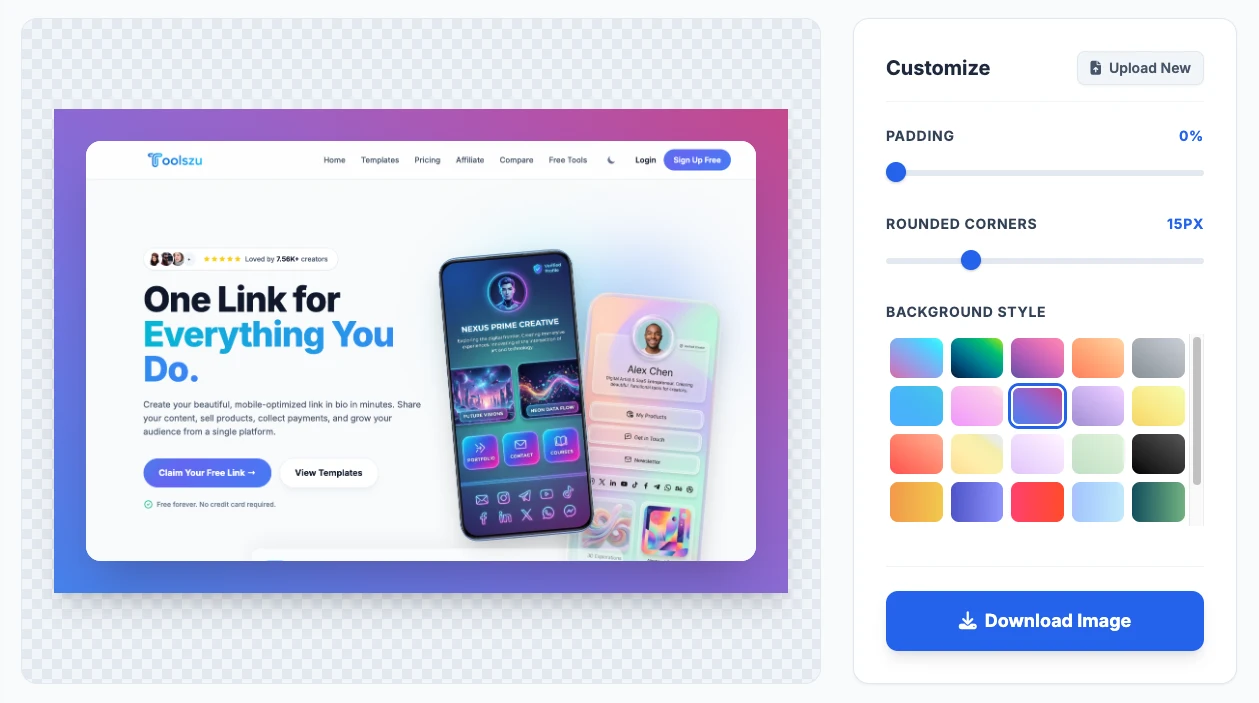
Free screenshot beautifier: add gradient & mesh backgrounds, macOS or browser window frames, soft shadows, rounded corners and captions — then export a crisp PNG sized for X, LinkedIn, Instagram or your blog. No watermark, no sign-up.
Drop, paste or upload your screenshot
Drag an image here, press Ctrl + V (⌘ + V on Mac), or browse.
Drag the screenshot to reposition · double-click to center · what you see is exactly what you download
Screenshots are edited in your browser — nothing is uploaded.
A Screenshot Beautifier That Looks the Same Everywhere
Most online editors capture whatever your browser window shows, so a screenshot edited on a phone comes out smaller or cropped. This tool draws your image on its own canvas from the original pixels — the file you download is identical on iPhone, Android, Windows, Mac and Chromebook.
1. One-click templates
Ten ready-made looks (macOS, Glass, Brutalist, Phone, Blur…) previewed live with your own screenshot.
2. Drag to position
Move the screenshot anywhere on the canvas with snap-to-centre guides, then tilt it a few degrees for a dynamic look.
3. Copy, share or download
Export PNG, JPG or WebP at 1×, 2× or 3×, copy straight to your clipboard, or share from your phone.
How to Add a Background to a Screenshot
Turn a plain screenshot into a polished, share-ready image in under 30 seconds — no Figma, Photoshop or design skills needed.
Add your screenshot
Drag it in, browse for a file, or simply press Ctrl+V (⌘+V) right after taking a screenshot.
Pick a template
Start from a template, or choose a gradient, mesh, solid, blurred or custom image background.
Style & size it
Adjust padding, corners and shadow, add a macOS or browser frame, a headline, and pick a platform size.
Download or copy
Save a high-resolution PNG, JPG or WebP — or copy it and paste straight into X, Slack or Google Docs.
Backgrounds
7 types, 40+ presets
Frames
macOS, Browser, Windows, Phone
Sizes
16 ratios & social presets
Export
PNG, JPG, WebP up to 3×
Watermark
Never
Limits
Unlimited exports
Privacy
Runs in your browser
Price
100% free, no sign-up
Everything You Need to Make Screenshots Look Professional
The features people usually pay for in screenshot apps — free, in your browser.
Gradient & mesh backgrounds
24 curated gradients, 8 mesh gradients plus a Shuffle button that generates a fresh mesh palette every click.
Blurred auto background
Build a soft, colour-matched backdrop from the screenshot itself — always on-brand, no colour picking.
macOS window frame
Wrap any capture in a Mac-style window with traffic-light buttons and an optional title, in light or dark mode.
Browser mockup with your URL
Show web pages inside a clean browser window with a padlock and your own address — ideal for landing pages.
Windows & phone frames
Windows 11-style title bars for desktop apps, and a minimal phone bezel for mobile app screenshots.
Four shadow styles
Soft, floating, hard (neo-brutalist) and glow shadows with adjustable strength that scale with your image.
Glass border & outlines
Add a frosted glass rim or a solid outline in any colour, plus dots, grid or line patterns and film grain.
Headline, subtitle & handle
Turn a screenshot into a social graphic with a headline above or below and your @handle in any corner.
Exact social media sizes
Presets for X/Twitter, LinkedIn, Instagram, Stories, YouTube, Product Hunt, Dribbble and blog OG images.
Transparent PNG with shadow
Export only the framed screenshot and its shadow on a transparent background to drop into Canva, Figma or Keynote.
Undo, redo & remembered style
Experiment freely with full undo history; your last style is remembered on this device for your next screenshot.
Retina & 4K export
Download at 1× original, 2× Retina or 3× for print and 4K displays — text in your screenshot stays sharp.
Best Screenshot Sizes for Social Media
Pick the matching preset in the Size tab and your image fits the feed perfectly — no awkward cropping of your screenshot.
| Platform | Preset size | Aspect ratio | Best for |
|---|---|---|---|
| X (Twitter) post | 1600 × 900 px | 16:9 | Product updates, code, tweet-able feature shots |
| LinkedIn post | 1200 × 627 px | 1.91:1 | Launch announcements, dashboards, case studies |
| Instagram portrait | 1080 × 1350 px | 4:5 | Mobile app screens, carousels, tips |
| Instagram square | 1080 × 1080 px | 1:1 | Feed posts, Facebook, Threads |
| Stories & Reels | 1080 × 1920 px | 9:16 | Instagram/Facebook Stories, TikTok, Shorts covers |
| Blog & Open Graph | 1200 × 630 px | 1.91:1 | Article hero images, link previews, Slack/Discord unfurls |
| YouTube thumbnail | 1280 × 720 px | 16:9 | Tutorial and software review thumbnails |
| Product Hunt gallery | 1270 × 760 px | ≈ 5:3 | Launch gallery images |
| Dribbble shot | 1600 × 1200 px | 4:3 | UI design portfolio shots |
Platforms update their recommendations from time to time — choose Custom size to enter any width and height.
Who Uses a Screenshot Background Maker?
Anyone who shares what’s on their screen — and wants it to look intentional.
SaaS founders & indie hackers
Changelogs, launch posts, Product Hunt galleries and “building in public” updates.
Developers
Share terminal output, code snippets and UI bugs fixed on X, GitHub READMEs and dev.to.
Marketers & social media managers
Turn reviews, testimonials, analytics wins and tweets into scroll-stopping posts.
Bloggers & technical writers
Consistent, branded screenshots for tutorials, help centres, docs and newsletters.
Designers
Quick portfolio and Dribbble/Behance shots without opening a design file.
Teachers & course creators
Clean slide visuals and course thumbnails that look professional on any projector.
App & e-commerce sellers
Feature highlights for app listings, Shopify stores and marketplace product pages.
Freelancers & agencies
Present client work, reports and proposals with screenshots that match your brand.
Free Screenshot Beautifier vs. Paid Apps & Design Tools
Many screenshot beautifiers are freemium — they add a watermark or limit exports until you upgrade. Here’s how Toolszu compares.
| What you get | Toolszu | Typical freemium beautifier | Figma / Photoshop |
|---|---|---|---|
| Price | Free forever | Free tier, then subscription | Subscription for full features |
| Watermark | Never | Often on free exports | None |
| Export limits | Unlimited | Often capped per month | Unlimited |
| Account required | No | Usually | Yes |
| Install needed | No — any browser | Some are desktop-only apps | App or web login |
| Image privacy | Processed on your device | Varies | Stored in cloud files |
| Time per screenshot | ~30 seconds | ~30 seconds | 5–15 minutes |
How to Make a Screenshot Look Good: 8 Design Tips
Keyboard Shortcuts
- Paste a screenshot
- Ctrl + V
- Download image
- Ctrl + S
- Copy image to clipboard
- Ctrl + C
- Undo / Redo
- Ctrl + Z / Y
- Re-center screenshot
- Double-click preview
On Mac, use ⌘ instead of Ctrl.
Private by Design
Screenshots often contain dashboards, emails, revenue numbers or customer data. That’s why this tool never uploads your image: everything — the background, frame, shadow and export — is rendered by your own browser.
Nothing is stored on Toolszu servers, there’s no account to create, and closing the tab clears your image. Only your style settings are remembered on your device so your next screenshot matches.
Frequently Asked Questions
Everything about adding backgrounds, frames and shadows to screenshots.
Upload or paste your screenshot (Ctrl+V), choose a template or a gradient, mesh, solid, blurred or custom image background, adjust padding, corners and shadow, then click Download. It takes about 30 seconds and works in any modern browser.
A screenshot beautifier turns a plain screenshot into a polished image by placing it on a background and adding padding, rounded corners, a drop shadow and optionally a window or device frame. The result looks professional on social media, in docs and in presentations.
Yes, it is 100% free with no watermark, no export limits and no sign-up. Every feature, including 3× export, frames, captions and transparent PNGs, is available to everyone.
No. Your screenshot is processed entirely in your browser using the HTML canvas. It is never uploaded to or stored on Toolszu servers, which makes the tool safe for confidential dashboards and client work.
Yes. The tool renders your design from the screenshot’s original pixels instead of capturing the page layout, so padding, shadows, frames and text come out identical whether you edit on a phone, tablet or desktop computer.
Open the Frame tab and choose macOS light or macOS dark. Your screenshot gets a title bar with red, yellow and green window buttons, and you can type an optional window title. Combine it with a gradient and a soft shadow for the classic Mac screenshot look.
Yes. Choose Browser light or Browser dark in the Frame tab and type your website address. The URL appears in the address bar with a padlock icon, which is perfect for showcasing landing pages and web apps.
Commonly recommended sizes are 1600×900 px (16:9) for X/Twitter, 1200×627 px for LinkedIn, 1080×1350 px (4:5) for Instagram portrait and 1080×1920 px for Stories. Select the preset in the Size tab and the tool exports that exact size.
Yes. Take a screenshot (for example with Win+Shift+S on Windows or Cmd+Ctrl+Shift+4 on Mac), then press Ctrl+V or Cmd+V on this page. You can also use the Paste button or drag and drop an image file.
Yes. Click the copy button or press Ctrl+C (Cmd+C on Mac) and paste the finished image straight into X, Slack, Discord, Notion, Google Docs or email. On phones you can also use the Share button.
Yes. Choose Transparent as the background type and export as PNG or WebP. You get the framed screenshot and its soft shadow on a transparent background, ready to place in Canva, Figma, Keynote or PowerPoint.
Choose a background that contrasts with your screenshot: light interfaces stand out on saturated or dark gradients, while dark interfaces stand out on pastel or bright gradients. For an on-brand look, use your brand colours in the Custom gradient or the Blur from screenshot option.
Yes. It covers the core features people use those tools for — gradient and mesh backgrounds, window and browser frames, shadows, social media sizes and high-resolution export — free, without a watermark, an account or an app install.
Yes. It works in Chrome, Safari, Edge, Firefox and Samsung Internet on any device. Very large exports are automatically capped at 16 megapixels so downloads also succeed on phones with limited memory.
You can upload PNG, JPG, WebP, GIF, AVIF and BMP images. You can download PNG for the best quality, JPG for the smallest file size, or WebP for websites, at 1×, 2× or 3× resolution.
Related Free Tools
Make Your Next Screenshot Stand Out
Paste a screenshot, pick a template, download. Free, private and watermark-free — every time.
Beautify a Screenshot